How to Do the Migos AI Trend
Follow a practical Migos AI trend tutorial: choose two photos, select 4 or 15 seconds, review your video and download the finished duet.
Follow the two-photo workflow from upload to download
If you searched how to do the Migos AI trend, start with the inputs rather than a prompt. You need two separate photos, one for each performer. The generator supplies the orange booth, motion and soundtrack.
1. Choose one clear photo for each performer
Avoid group photos, face-covering accessories and heavy crops. Use a well-lit, recognizable face and visible upper-body clothing. The left and right upload slots determine the casting positions in the preset.
2. Choose duration and quality before submitting
Select 4 or 15 seconds and Low 480P, Standard 720P or High 1080P. The cost updates with your selection. A new account’s 16 welcome credits cover a 4-second Low video; longer or higher-quality options require more credits.
3. Let the saved task finish, then review it
After submission, check progress in your video history. Processing continues in the background. When ready, play the result with sound and inspect both subjects through turns and gestures, instead of judging only the poster frame.
4. Download and prepare your post
Use the download control on your completed task. You can then crop for a vertical feed and add your own caption in another editor. If the likeness is weak, revisit the input photos before paying for a longer attempt.
Due foto. Guarda la trasformazione.
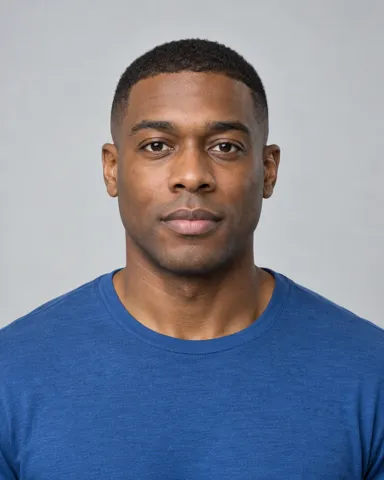
Carica una foto separata per ogni persona, quindi seleziona Genera ora. Questo esempio reale mostra il video creato dalle due foto sottostanti.

3. Selezionare Genera ora
Domande frequenti sui video Migos AI Video
Choose your next step
Migos AI Video Generator — Two Photos, One Duet →
Generate a Migos AI video from two photos. Choose 4 or 15 seconds, compare quality and credit cost, then preview and download your orange-booth duet.
Migos AI Trend →
Learn the Migos trend AI format: two performers, an orange booth and one microphone. See how to turn your photos into a short duet video.
Migos Hotel Lobby AI →
Make a Migos Hotel Lobby AI video from two photos. Learn the orange-booth format, check a real example and start with a free 4-second preview.
Free Migos Hotel Lobby AI Video →
Generate and preview one free 4-second, 480P Migos AI video with a new account. An active subscription is required to download the free result.
Migos Viral Video Examples →
Explore Migos viral video examples, see the two photos behind a real generated clip, and learn what to check before making your own version.